TABLE OF CONTENTS
Overview
This guide explains how to allocate and associate an Elastic IP address to your virtual machine on the DVC Portal to provide a static public IP for external connectivity.
Prerequisites
Make sure you are logged in to the DVC Portal and have an active virtual machine already created.
Steps to Allocate and Associate an Elastic IP
Step 1: Open Instance Details
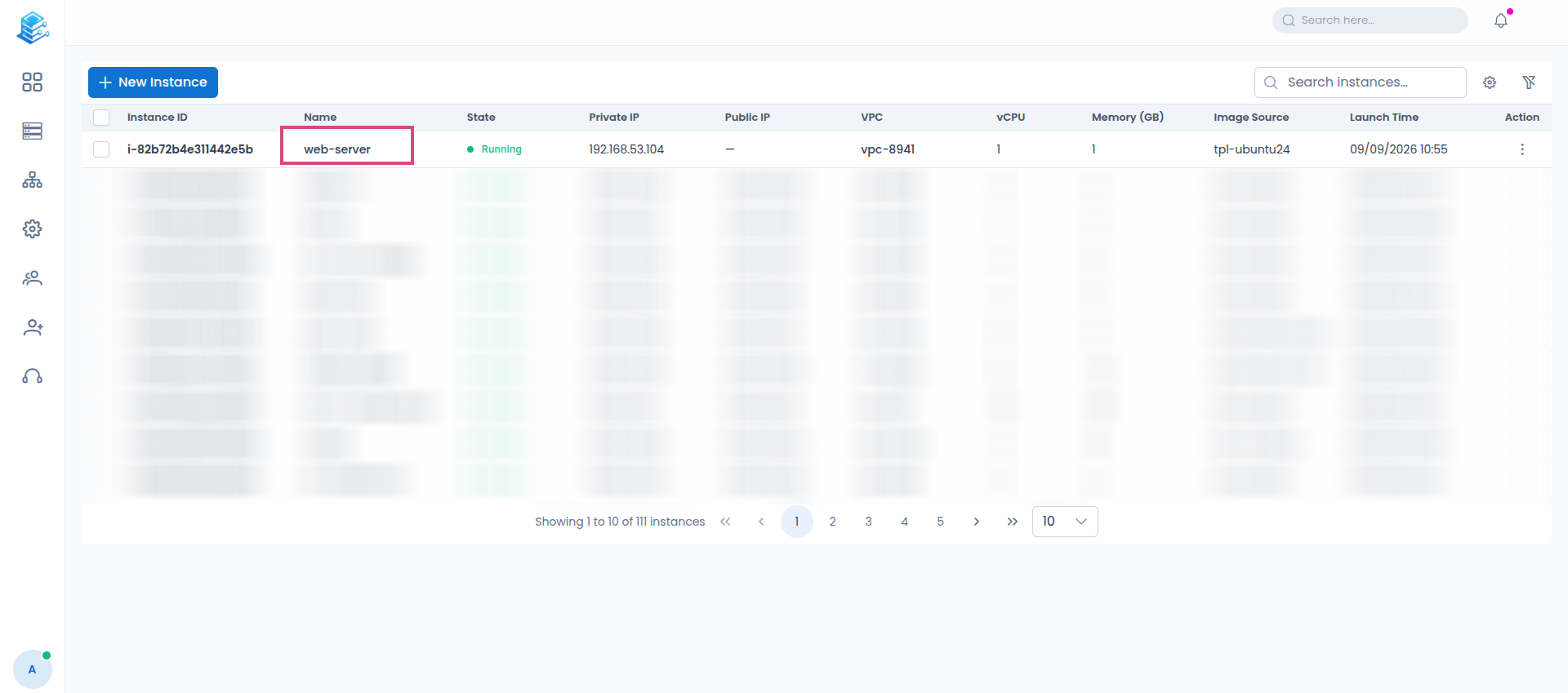
From the Instances management page, locate your virtual machine in the table.
Click on the name of your virtual machine under the Name column (e.g.,
web-server) to open its full details page.
Step 2: Access Elastic IP Assignment
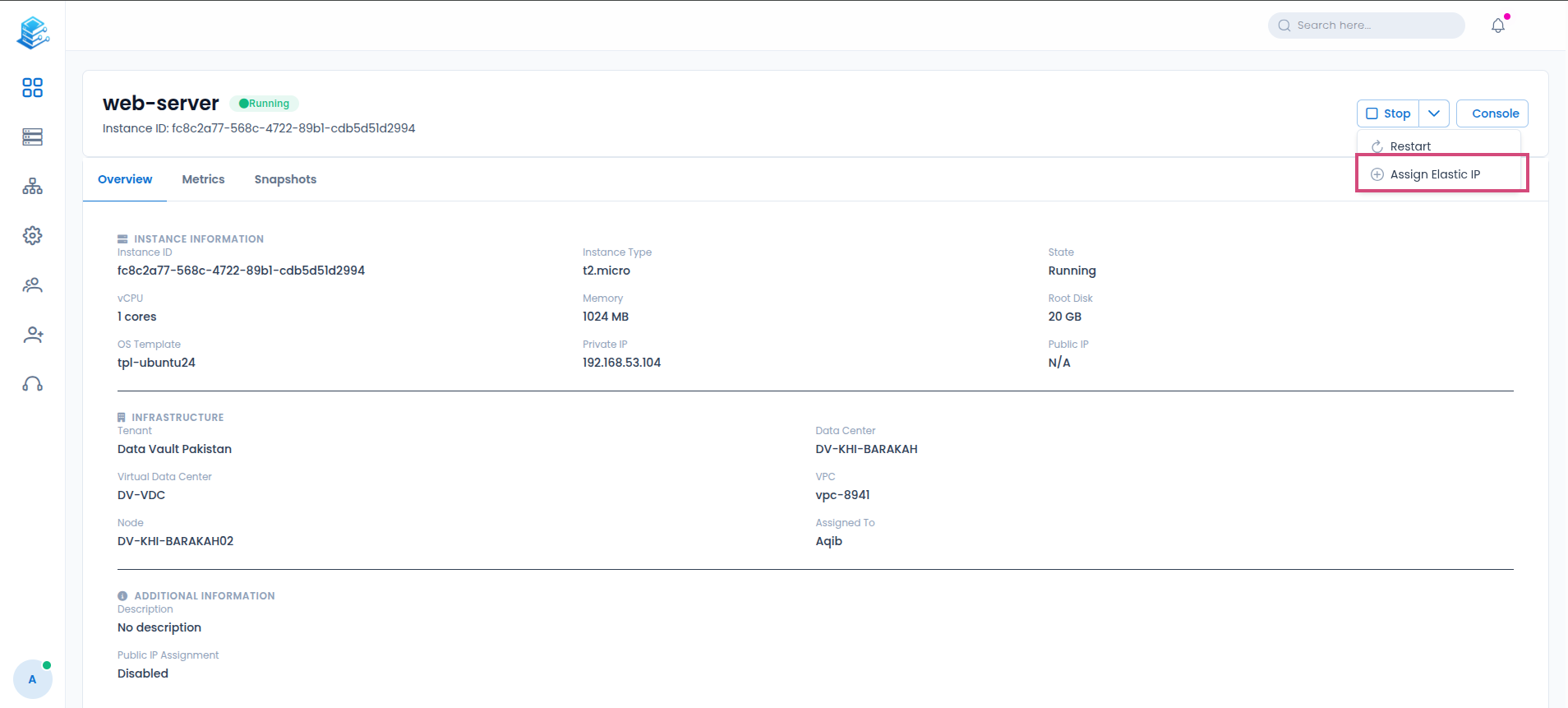
On the instance details page, locate the dropdown action button next to Stop in the top right corner.
Click the dropdown arrow to expand the additional action options.
Click on Assign Elastic IP from the menu.
Conclusion
Allocating and associating an Elastic IP address on the DVC Portal provides your virtual machine with a reliable, static public IP address straight from the instance management dashboard, ensuring consistent external access and connectivity.
Was this article helpful?
That’s Great!
Thank you for your feedback
Sorry! We couldn't be helpful
Thank you for your feedback
Feedback sent
We appreciate your effort and will try to fix the article