How to Create and Launch a Template from an Existing VM on the DVC Portal
TABLE OF CONTENTS
Overview
This guide explains how to create a launch template from an existing virtual machine on the DVC Portal, allowing you to easily spin up identical future instances.
Prerequisites
Make sure you are logged in to the DVC Portal and have an existing virtual machine configured.
Steps to Create a Launch Template
Step 1: Access Instance Action Menu
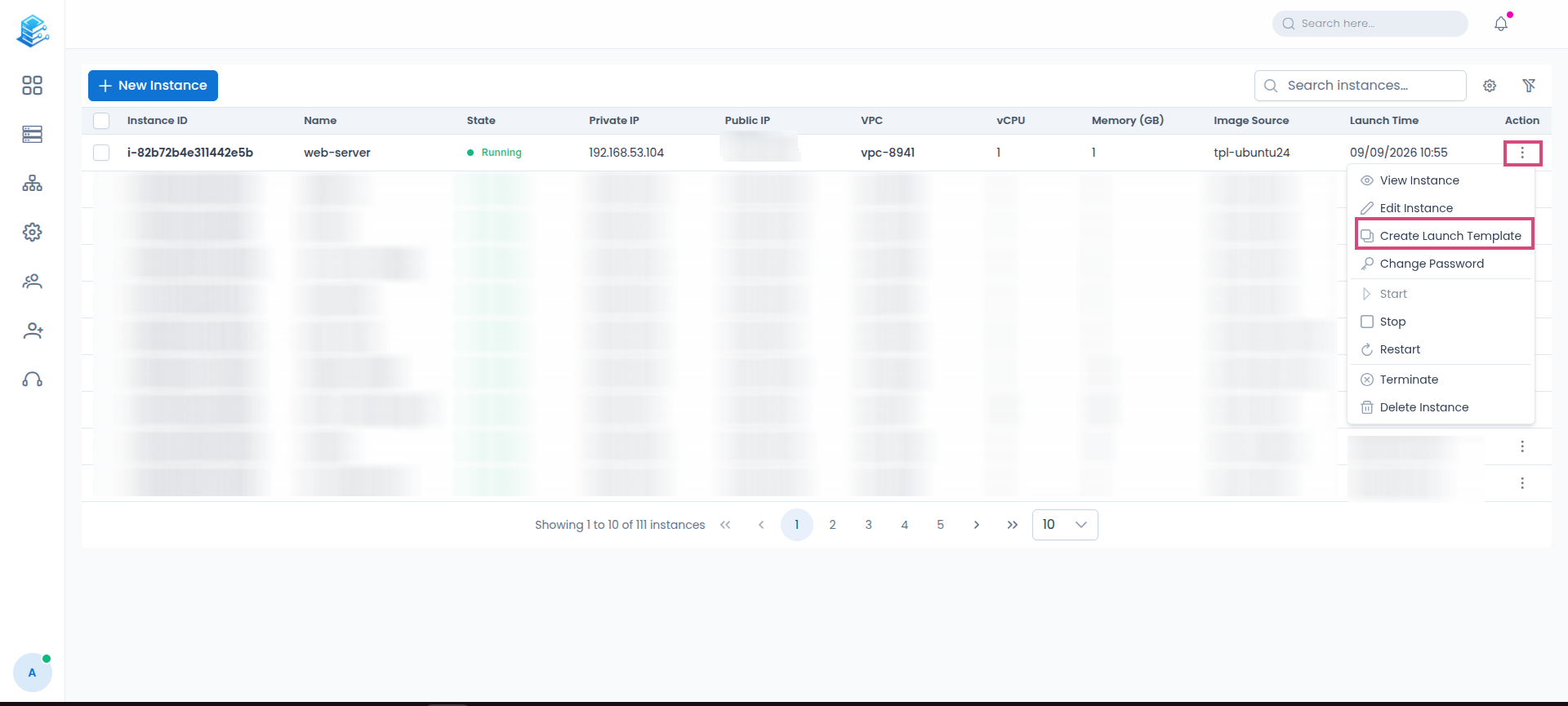
From the Instances management page, locate your target virtual machine in the list.
Go to the Action column on the far right of the row and click the three-dot vertical icon.
From the expanded action menu, click on Create Launch Template.
Step 2: Verify Template Status in Launch Templates
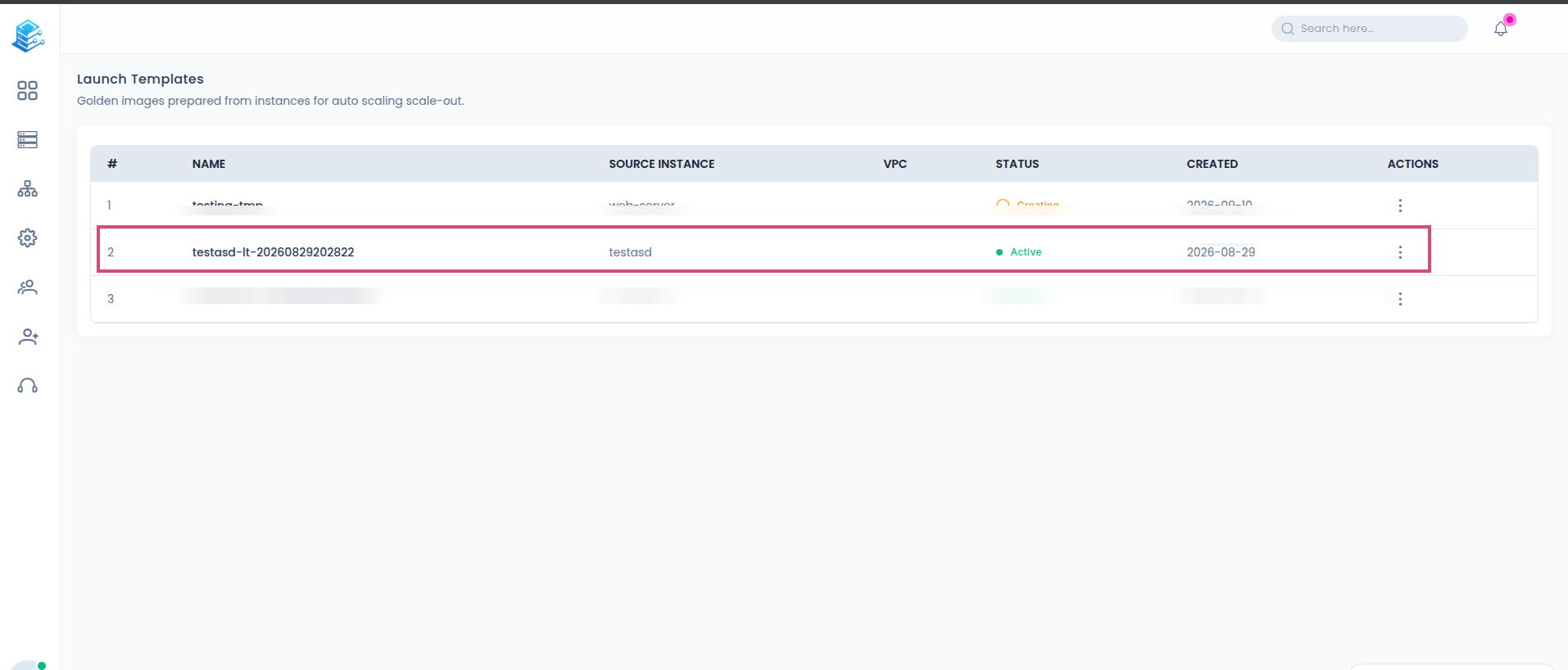
After triggering template creation, you will be directed to the Launch Templates page (described as golden images prepared from instances for auto scaling scale-out).
Locate your newly generated template in the list and verify that the Status column displays Active with a green indicator.
Review details such as row number, template Name, Source Instance, VPC, Created timestamp, and actions menu.
Conclusion
Creating a launch template from an existing virtual machine on the DVC Portal streamlines your infrastructure workflows, enabling rapid deployment and consistent configuration scaling.
Was this article helpful?
That’s Great!
Thank you for your feedback
Sorry! We couldn't be helpful
Thank you for your feedback
Feedback sent
We appreciate your effort and will try to fix the article